



February 16, 2022
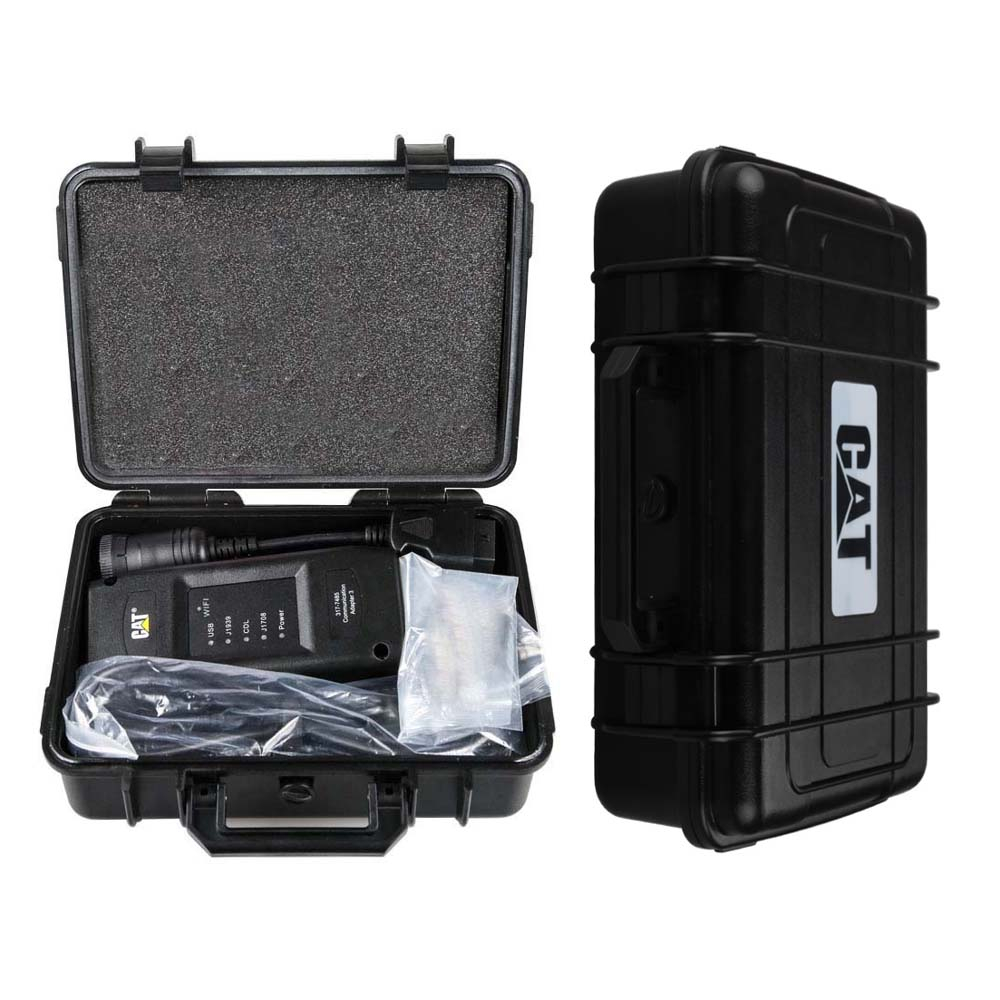
Caterpillar Electronic Technician (Cat ET) is diagnostic software required to communicate, diagnose and service electronically controlled Caterpillar engines and machines. When connected to an Electronic Control Module (ECM), a technician has the ability to diagnose existing and potential problems, configure the product, and obtain data for analysis.
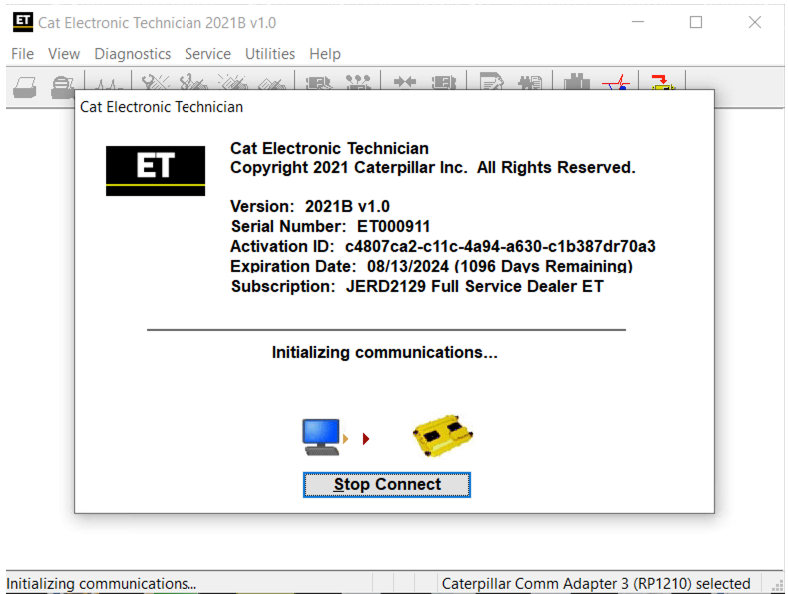
2021B is an upgraded version of 2021A , A represents the first quarter, and C is the software updated in the third quarter.
2021B Cat ET software as Cat Caterpillar ET 2018C 2019A 2019C 2020C 2021A Software update version, 2021B Caterpillar Electronic Technician software With CAT ET 4 Cat caterpillar adapter 4 support caterpillar diagnostic till 2021.
Cat et Caterpillar Electronic Technician Software:
Brand: Caterpillar
Region: WorldWide
Support Multi-languages:English, Chinese, Danish, French, German, Italian, Japanese, Portuguese, Russian, Spanish
Support All cars of CAT
Package :
1.Used Dell D630 laptop
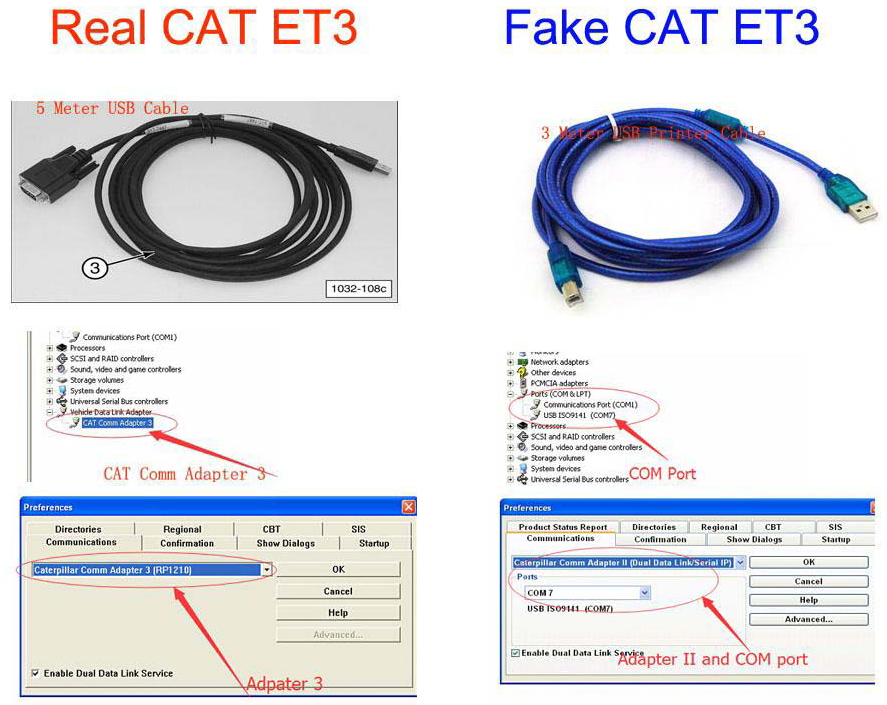
2.Real CAT et3 Comm Adapter III(it’s best quality cat et 3,not adapter 2,please check Communication port)
3.USB Cable (From device to your computer)
4.J1939/J1708 9PIN Cable (from device to your truck)
5.6PIN Cable (for old truck)
6.14PIN Cable(for new truck)
7.Plastic box
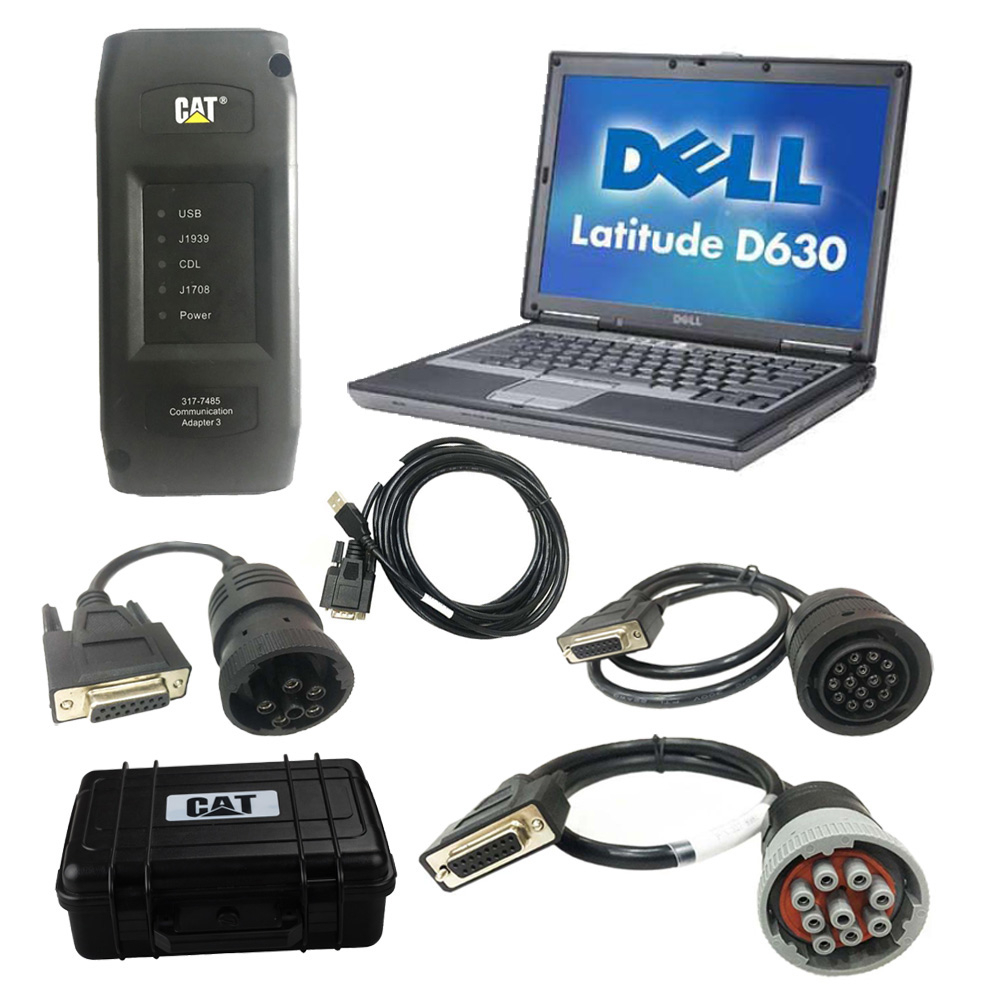
The Second hand Dell D630 Laptop specification:
Brand: Dell
Type: Laptop/Notebook
Screen Size: 14.0
Memory (RAM): 4G
Processor Type: Intel Core 2 Duo
Primary Drive: DVD+/-RW
Processor Speed: 1.80 GHz
Processor Configuration: Dual Core
The list of supported CAT machines and engines can be found below(if your vehicle is missing, please contact us we will double check):
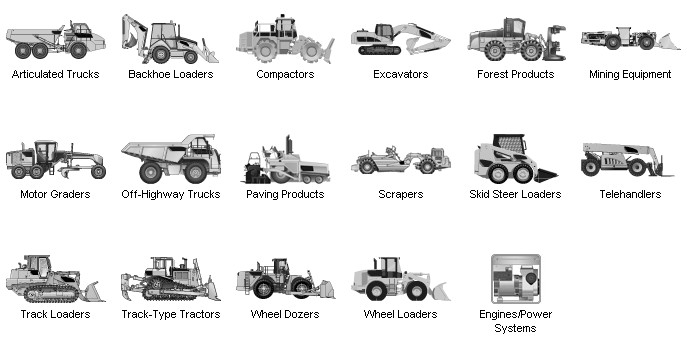
Engines:
Electric Power
Electric Power Generation
Industrial
Marine Power Systems
Oil and Gas
Machines:
Articulated Trucks
Asphalt Pavers
Backhoe Loaders
Cold Planers
Compactors
Dozers
Drills
Excavators
Feller Bunchers
Forest Machines
Forwarders
Harvesters
Hydraulic Mining Shovels
Knuckleboom Loaders
Material Handlers
Motor Graders
Off-Highway Trucks
Pipelayers
Road Reclaimers
Site Prep Tractors
Skid Steer and Compact Track Loaders
Skidders
Telehandlers
Track Loaders
Underground – Hard Rock
Underground – Longwall
Underground – Room and Pillar
Utility Vehicles
Wheel Dozers
Wheel Excavators
Wheel Loaders
Wheel Tractor-Scrapers
Features
Display, graph and log status parameters.
Retrieve prognostic data including histograms, engine totals for fuel used and miles traveled.
View active diagnostics and clear logged diagnostics. View events where
irregularities have occurred and have been logged by the ECM.
Perform calibrations to enhance performance of the ECM.
Customize the ECM with application-specific settings.
Over 100 custom Diagnostic, Information and Service features including:
– 2D and 3D Histogram plotting capability (engine software
support required).
– Custom Status screen groups
– Snapshots (Download and display snapshot data recorded by the
ECM)
– Configuration Aid that allows upload/download of same
configuration to multiple control modules
Customized Service Tool Options
Customized service tool name
Customized graphics for the splash screen and icons
Customized installation
Aftermarket differentiation, i.e., the tool for one customer does not work on the product of another customer.
Licensing options for customer management
Flash programming of the ECM(s)
Training demonstration allows familiarity with the tool’s primary functions without connecting to ECM(s)
Perform customized diagnostic tests to identify harness problems,
cylinder or component failures (Automatic Cylinder Cutout with cylinder
to cylinder fueling comparison)
Caterpillar ET Software Function:
This diagnostic app allows you to:
View active and logged diagnostics.
View events where irregularities occurred and were logged by the ECM.
View the status of a group of parameters (temperatures, pressures, etc.) simultaneously.
Record and log performance data.
Graph a group of status parameters.
View the current configuration of an ECM.
Change ECM configurations.
Perform diagnostic tests.
Perform calibrations.
Print reports and diagnostic results.
CAT Caterpillar ET Diagnostic Tool from Caterpillar provide the capability to access Electronic Control Modules (ECMs) from a personal computer. Many job-critical tasks can be performed with an electronic service tool.
Original Factory Caterpillar ET3 Adapter III Compare With OEM Caterpillar ET Diagnostic Adpater III
1. Original Factory CAT ET can use once pluged, no need install the USB
drive, the software can automatic realize it for ET3 Adapter, and the
machine can automatic weld the high quality Circuit board, quality will
be more reliable.
2. The OEM Caterpillar ET Diagnostic Adapter III need use USB Drive to
install, and need choose the COM Port, and in the software ET also need
choose ET2 then can be used.
The Details as follows:
Posted by: youobd2 at
09:20 AM
| No Comments
| Add Comment
Post contains 697 words, total size 8 kb.
February 15, 2022
How to reflash MB SD C4 Plus without battery? You can edit Toolkit.ini to change the value of MinUpdateVoltageVbatt and MinUpdateVoltageVExt, and update the related files.
Step 1: Change MinUpdateVoltageVbatt/VExt Value
Right click the corresponding icon
Select ‘Goto BIN directory’
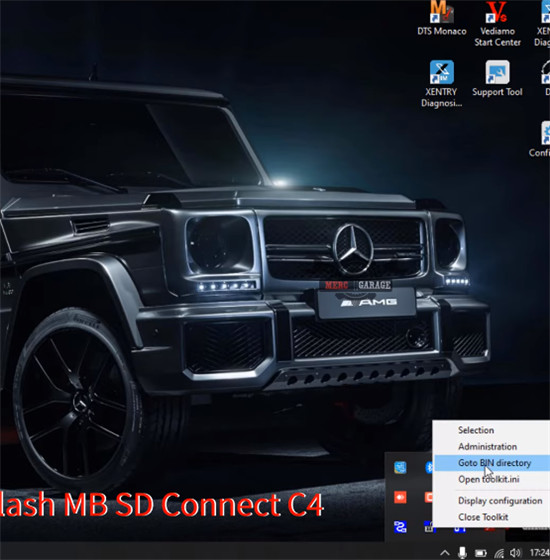
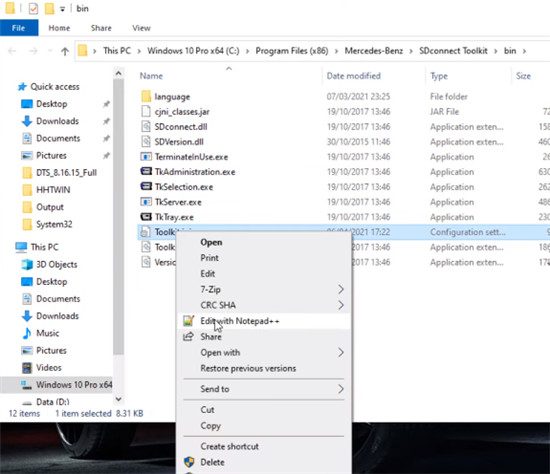
Then right click ‘Toolkit.ini’ and select ‘Editwith Notepad++’
You can see MinUpdateVoltageVbatt=7200 and MinUpdateVoltageVExt=11000.
Change these two values to 0
i.e MinUpdateVoltageVbatt=0
MinUpdateVoltageVExt=0
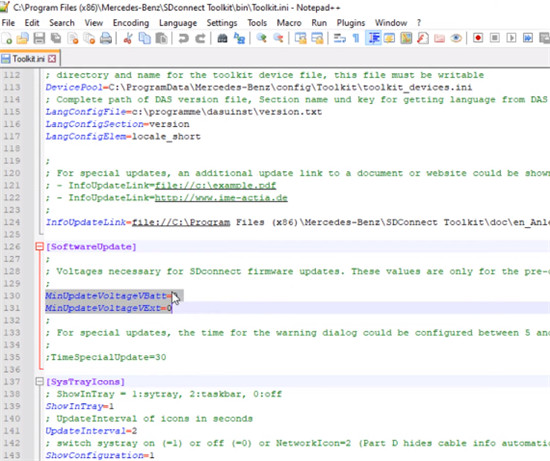
Remember to reboot the computer after changing.
Open ‘Administration’
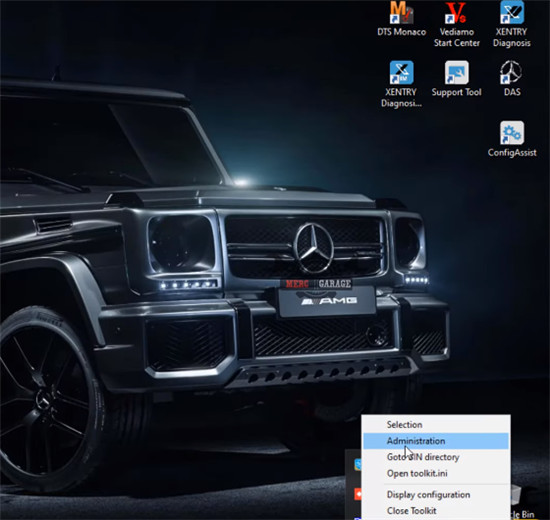
It shows ‘the toolkit is being initialized.’
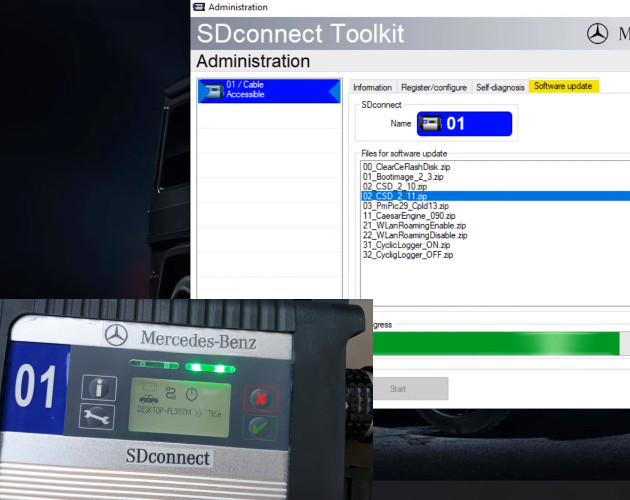
Step 2: Update 02 CSD_2_11.zip
Click 01/Cable Accessible>> Software update>> 02 CSD_2_11.zip>> Start
It will take approx 2 min to update the software.
The indicators light up during the process.
Update SDconnect software successfully
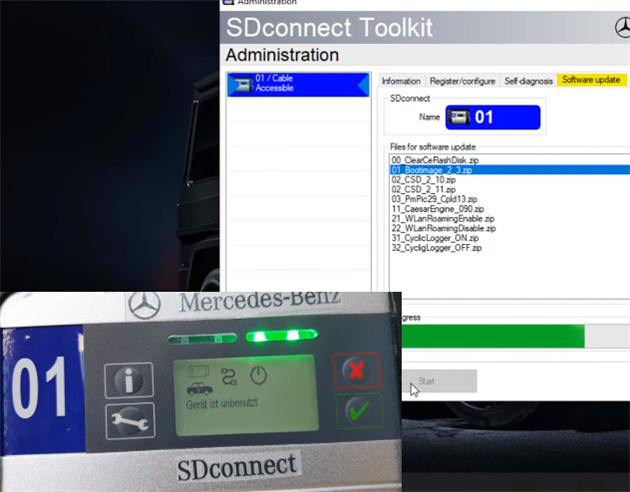
Step 3: Update 01_Bootimage_2_3.zip
Click 01/Cable Accessible>> Software update>> 01_Bootimage_2_3.zip>> Start
It also takes approx 2 min to update.
Step 4: Update 03_PmPic29_Cpld13.zip
Click 01/Cable Accessible>> Software update>> 03_PmPic29_Cpld13.zip>> Start
It also takes approx 2 min to update.
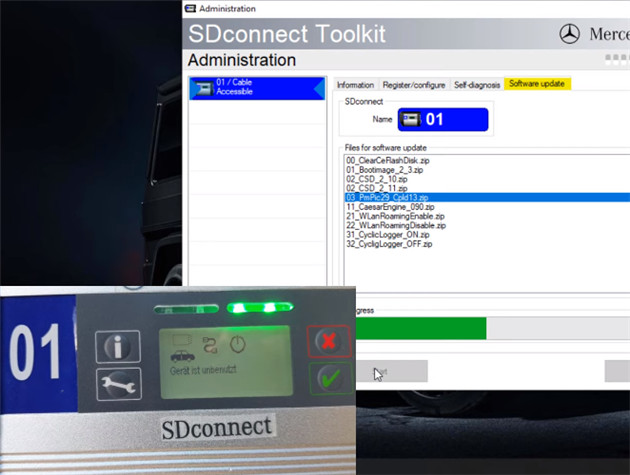
Update is completed.
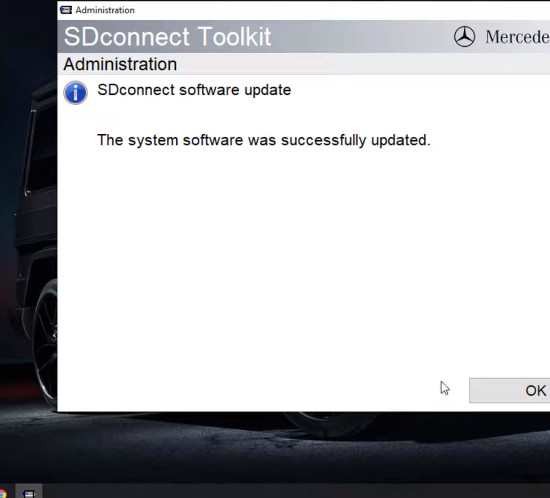
Hope it helps!
Posted by: youobd2 at
10:35 AM
| No Comments
| Add Comment
Post contains 166 words, total size 4 kb.
Many of us now have aPIWIS 2orPIWIS 3. I "assembled†my PIWIS 2 last year. I downloaded the software on-line (for free!) and then bought a clone Samtec interface from China. The program runs using VMWare on my old MacBook Pro. Windows XP is the operating system so everything is a bit clunky and slow but it works well enough and is perfect for my occasional diagnostic and coding needs! Best of all, my total build cost was crazy cheap! In fact, I sold my Durametric Pro cable after putting together the PIWIS because the PIWIS is a much more powerful tool!
My primarily motivation to get a PIWIS was to lower my car through the air suspension. I was initially looking at lowering using a module ($$$) or using links. I had read that lowering could be done with a PIWIS but there was very little DIY information on-line on how to do this. I have now figured out how to do this and will do up a "DIY Lowering with PIWIS†for the community once I get a chance.
When I first started using my PIWIS I got a low voltage warning even though my battery was fully charged (had been sitting for days on a Porsche Charge-o-mat Pro) and I had my 10A battery charger connected during my PIWIS session. A forum member on Rennlist with extensive PIWIS knowledge posted about the need for "clean†power while using the PIWIS. This ideas of "clean†power intrigued me. This lead me down a "rabbit holeâ€â€¦
I came across this Porsche After Sales Technical Bulletin confirming the need to use a battery charger with a fixed voltage between 13.5V – 14.5V while ECU programming on modern Porsche vehicles. Porsche recommended using a battery charger capable of putting out a minimum current of 90A to maintain this stable voltage. Few of us have chargers that can produce a STEADY 90A (not a one time boost charge).
So…VOLTAGE needs to stay constant (stable) while ECU coding. To accomplish this, amperage needs to fluctuate to maintain constant voltage. So, using a conventional battery charger that puts out constant amperage doesn’t fit the bill.
I then looked into commercially available power supply units (PSU) that supply constant voltage (i.e. "clean†power). The Schumacher INC100 fits the bill but is crazy expensive! I thought about buying one but, in the end, couldn’t justify the cost for my occasional DIY use.
Then I stumbled across a forum post on BoostAddict that described how to make your own PSU using a computer sever power supply. I went ahead and made my own and it works AMAZINGLY! I’ve used it for hours and the voltage remains rock solid stable with no fluctuation. I guess this shouldn’t be a surprise as it is designed to power computer systems. It is quiet, portable, doesn’t overheat, and it cost me $55 (CDN) all in!
FYI…I did not come up with this PSU build. I’m solely passing along the knowledge I gained as I chased the rabbit down the hole!
Disclaimer: Do this at your own risk and don’t mix up the polarity!
Posted by: youobd2 at
10:30 AM
| No Comments
| Add Comment
Post contains 528 words, total size 3 kb.
20 queries taking 0.0116 seconds, 33 records returned.
Powered by Minx 1.1.6c-pink.

