



September 28, 2019
Change Security Alarm Setting for Nissan Sentra 2014:
Connect Launch X431Throttle to Nissan Sentra OBD port,the enter menu to select "Nissanâ€.

Check Nissan diagnosis software version and function list,select "OKâ€

Select "The Vehicle With 16PINâ€

Confirm VIN and select "OKâ€

Select "Automatically Searchâ€

Confirm VIN,Model,Year and select "OKâ€

Select "System Selectionâ€

Select "BCM(Body Control Module)â€

System information,select "OKâ€

Select "Security Alarm SETâ€

It will prompt you "Change Security Alarm Settingâ€,select "OKâ€

The current setting can be changed "On†or "Offâ€

Once completed,select the back button

Done!
Posted by: youobd2 at
12:50 PM
| Comments (1)
| Add Comment
Post contains 102 words, total size 6 kb.
September 17, 2019
I bought the MB SD C4+Dell D630 Laptop pre-installed bundle, when I test it have the problem SD Connect C4 cannot power on when connected with Tourismo bus, I contacted there customer service at obdii365.com, and here is the solution provided by their engineer.
I will explain my problem in detail:
†I have tried 2 different mb sd connect c4 on Tourismo buses and sd connect does not power on.In the meantime those MB SD Connect C4 works normally to any other MB Truck and car.also on Tourismo have check Mb Star C3 and works normally.â€
You should check:
bus with OBD
pin 4 + 5
both must be connected and ground
In SDConnect "-†is 5 pin only. There is 4 contact not used in 16pin OBD connector.
"i’m getting an communication error when connecting xentry to a tourismo.â€

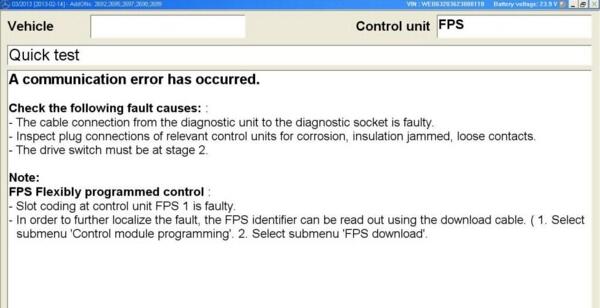

A Communication error has occurred when access FPS system
Solution:
– turn OFF/ON BUS ground switch (our remove battery – cable). FPS1 wake up and MB Star diagnostic recognized FPS1/VIN code.
or
– enter the DAS ATEGO truck come and place manually and then it will work perfect
†Another problem is : "Currently the speed limit is set to 100 km/h. I’m trying to set it to higher value (with MB SD C4 DAS using modified EOL files). On the menu it tells me that I can, because there are higher values (105 km/h. 112 km/h, etc). But when I try to set the speed limit to higher than 100 km/h it doesn’t allow me to do it (can’t save the changes). When I try to set it below 100 km/h everything goes fine.â€
I done the Access special settings , and it working perfect now!
Posted by: youobd2 at
02:13 PM
| Comments (1)
| Add Comment
Post contains 296 words, total size 3 kb.
35 queries taking 0.0339 seconds, 129 records returned.
Powered by Minx 1.1.6c-pink.

