



December 30, 2021

-
Description: 2021B Cat ET software as Cat Caterpillar ET 2018C 2019A 2019C 2021A Software update version, 2021B Caterpillar Electronic Technician software With CAT ET 3 Cat caterpillar adapter 3 support caterpillar diagnostic till 2021.
CAT Caterpillar ET Diagnostic ToolProduct Description :
CAT Caterpillar ET Diagnostic Tool from Caterpillar provide the
capability to access Electronic Control Modules (ECMs) from a personal
computer. Many job-critical tasks can be performed with an electronic
service tool. The user can display the status of a group of parameters
(temperatures, pressures, etc.) simultaneously, view active and clear
logged diagnostics, display the current configuration of an ECM and much
more. The service tool works with a communication adapter to allow
connection to an ECM. A graphical interface makes this software quick to
learn and easy to use. A separate pull-down menu for each function
enhances the "ease of use.†The version and identification of the ECM is
automatically retrieved and is displayed on a summary screen when the
program is started. Diagnostic tests and calibrations can also be
performed.
CAT Caterpillar ET Diagnostic Tool enable
service technicians to reprogram ECMs, reconfigure control system
parameters, fine tune performance or diagnose the root cause of a
failure the first time. These powerful tools allow service personnel to
display and analyze vital performance and health information from any
system quickly and accurately. The service tool communicates with any
system using ATA (J170 , J1939 or the Caterpillar proprietary data link
networks. The service tools provide information and features needed to
help a technician diagnose problems and perform repairs and to customize
and personalize the operation of a product. By allowing customers to
design flexibility and configurability into a product, Caterpillar
service tools stretch beyond the capabilities of preprogrammed ECMs or
onboard display systems.
, J1939 or the Caterpillar proprietary data link
networks. The service tools provide information and features needed to
help a technician diagnose problems and perform repairs and to customize
and personalize the operation of a product. By allowing customers to
design flexibility and configurability into a product, Caterpillar
service tools stretch beyond the capabilities of preprogrammed ECMs or
onboard display systems.
With the CAT Diagnostic Tool, you can:
View active and logged diagnostics
View events where irregularities occurred and were logged by the ECM
View the status of a group of parameters (temperatures, pressures, etc.) simultaneously
Record and log performance data
Graph a group of status parameters
View the current configuration of an ECM
Change ECM configurations
Perform diagnostic tests
Perform calibrations
Print reports and diagnostic results
For some machine and engine products, additional functionality has been included with the service tool program
Features
Display, graph and log status parameters.
Retrieve prognostic data including histograms, engine totals for fuel used and miles traveled.
View active diagnostics and clear logged diagnostics. View events where
irregularities have occurred and have been logged by the ECM.
Perform calibrations to enhance performance of the ECM.
Customize the ECM with application-specific settings.
Over 100 custom Diagnostic, Information and Service features including:
– 2D and 3D Histogram plotting capability (engine software
support required).
– Custom Status screen groups
– Snapshots (Download and display snapshot data recorded by the
ECM)
– Configuration Aid that allows upload/download of same
configuration to multiple control modules
Customised Service Tool Options
Customized service tool name
Customized graphics for the splash screen and icons
Customized installation
Aftermarket differentiation, i.e., the tool for one customer does not work on the product of another customer.
Licensing options for customer management
Flash programming of the ECM(s)
Training demonstration allows familiarity with the tool’s primary functions without connecting to ECM(s)
Perform customized diagnostic tests to identify harness problems, cylinder or component failures (Automatic Cylinder Cutout with cylinder to cylinder fueling comparison)
Caterpillar electronic technician 2020B with WinFlash future is an updated version of the caterpillar dealer diagnostic software that can help technicians to diagnose existing and potential problems with their electronically controlled Caterpillar Engines and Machines.
To get the vehicle information the Cat ET software must be connected to the Electronic Control Module (ECM). For this purpose, you need a suitable diagnostic link adapter (DLA), for instance, Genuine CAT Comm Adapter III
The list of supported CAT machines and engines can be found
below(if your vehicle is missing, please contact us we will double
check):
Engines:
Electric Power
Electric Power Generation
Industrial
Marine Power Systems
Oil and Gas
Machines:
Articulated Trucks
Asphalt Pavers
Backhoe Loaders
Cold Planers
Compactors
Dozers
Drills
Excavators
Feller Bunchers
Forest Machines
Forwarders
Harvesters
Hydraulic Mining Shovels
Knuckleboom Loaders
Material Handlers
Motor Graders
Off-Highway Trucks
Pipelayers
Road Reclaimers
Site Prep Tractors
Skid Steer and Compact Track Loaders
Skidders
Telehandlers
Track Loaders
Underground – Hard Rock
Underground – Longwall
Underground – Room and Pillar
Utility Vehicles
Wheel Dozers
Wheel Excavators
Wheel Loaders
Wheel Tractor-Scrapers
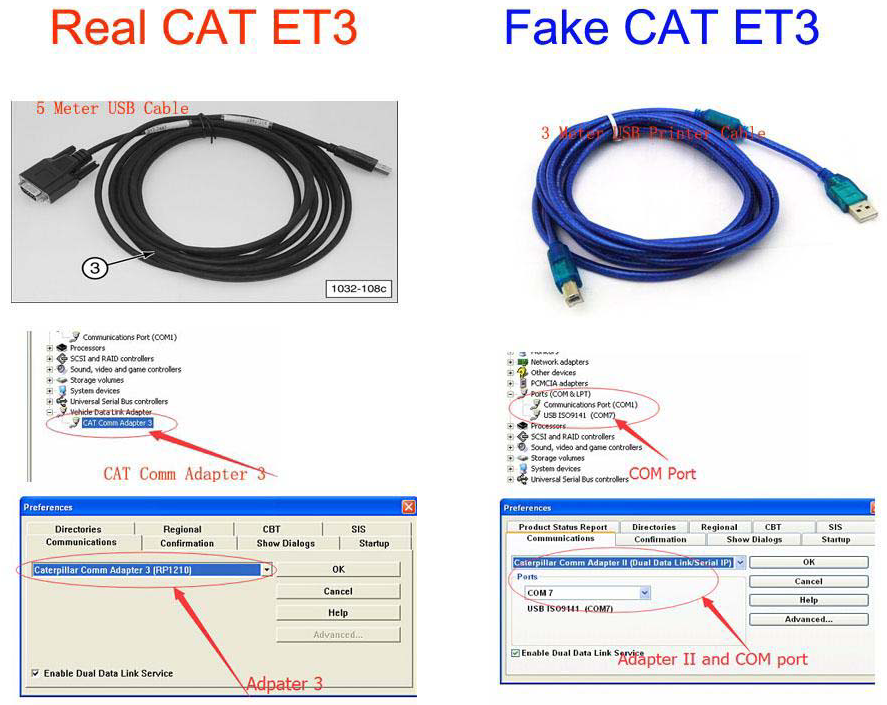
Original Factory Caterpillar ET3 Adapter III Compare With OEM Caterpillar ET Diagnostic Adpater III
1. Original Factory CAT ET can use once pluged, no need install the
USB drive, the software can automatic realize it for ET3 Adapter, and
the machine can automatic weld the high quality Circuit board, quality
will be more reliable.
2. The OEM Caterpillar ET Diagnostic Adapter III need use USB Drive to
install, and need choose the COM Port, and in the software ET also need
choose ET2 then can be used.
The Details as follows:
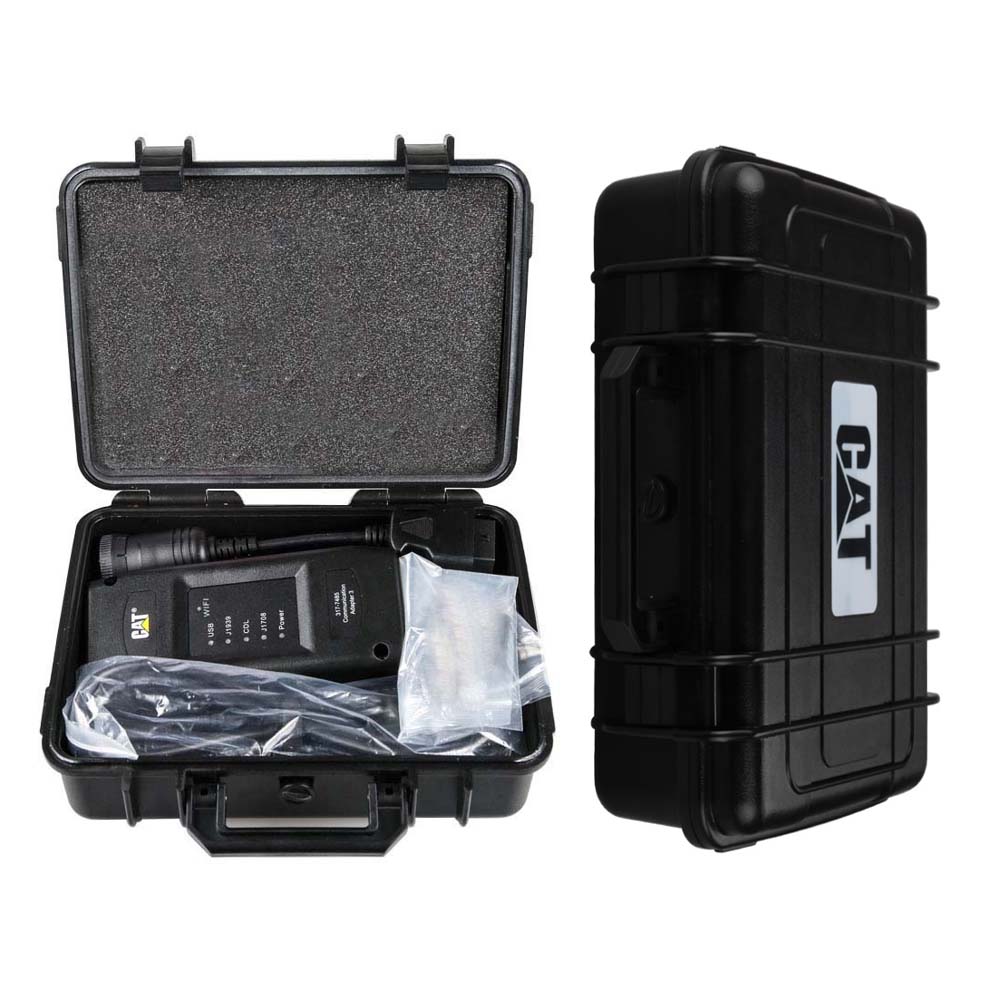
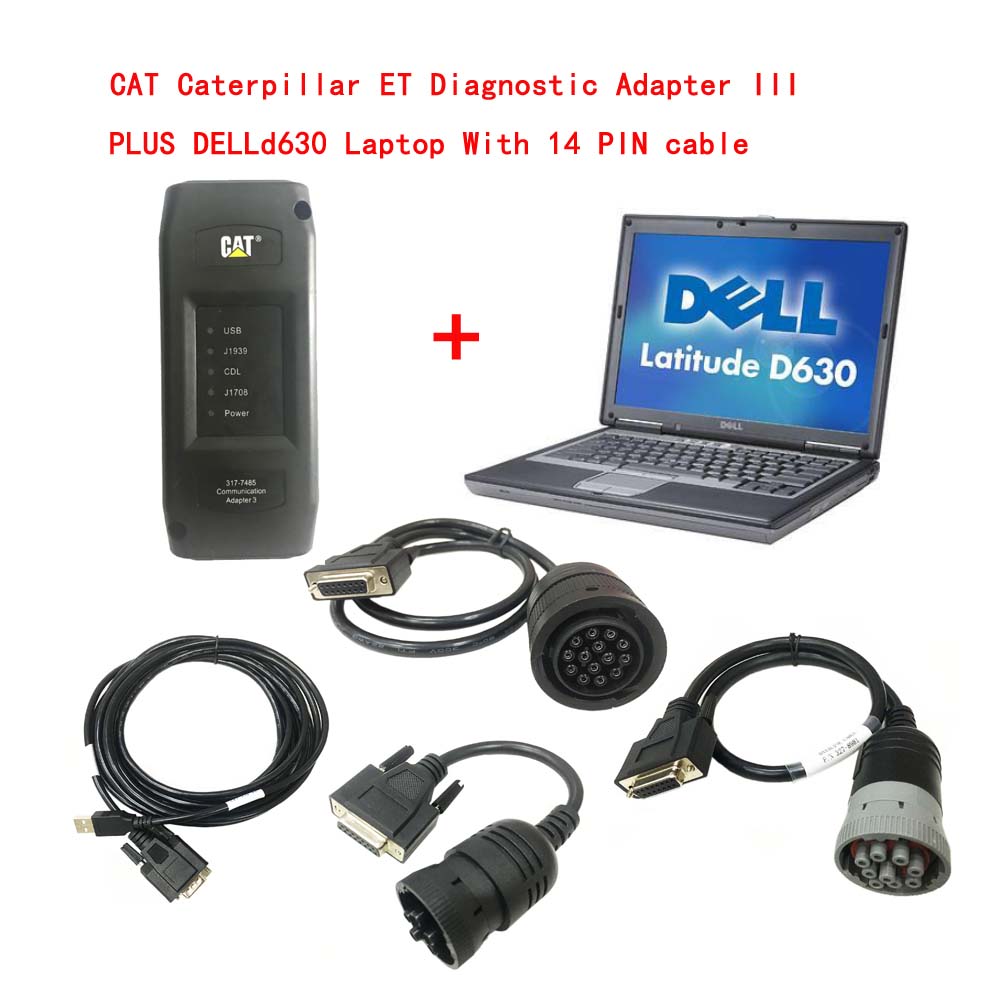
Package :
1.Used Dell D630 laptop
2.Real CAT et3 Comm Adapter III(it’s best quality cat et 3,not adapter 2,please check Communication port)
3.USB Cable (From device to your computer)
4.J1939/J1708 9PIN Cable (from device to your truck)
5.6PIN Cable (for old truck)
6.14PIN Cable(for new truck)
7.Plastic box
For more please click https://www.cnautotool.com/category-39-b0-Heavy+Duty+Diagnostic.html
Posted by: youobd2 at
11:25 AM
| No Comments
| Add Comment
Post contains 902 words, total size 9 kb.
December 23, 2021
2021 Newest Tsla PRO scanner Professaional Diagnostic and Programming Tool for TESLA S, X, 3
TslaPRO is the first independent device on the market supporting diagnostics in TESLA model S, X and 3 so far.
You must be aware that the use of someTslaPRO functions in some countries may be prohibited and against the law.
First of all, what you need to know about theTslaPRO before work.
TslaPRO:
*The tool is intended only for qualified personnel!
*You must be aware of the risk of loss if something went wrong (learn keys or make adaptations of BMS controller or something
else)
*You must have electronic skills which allow you to make adapters yourself and the connection betweenTslaPRO and the vehicles
CAN interface.
*TslaPRO uses the CAN network to communicate with the ECU.
Therefore, you will not have access to firmware, navigation update,
configuration because it cannot be done via CAN. All mentioned
things do by LAN on IC,CID not via CAN network.
Tsla PRO is a young software with small box interface but is constantly being developed.
Can help you solve a few problems with the TESLA car.
As so far,TslaPRO can work with ECU TESLA Model S with some function for TESLA Model X and3
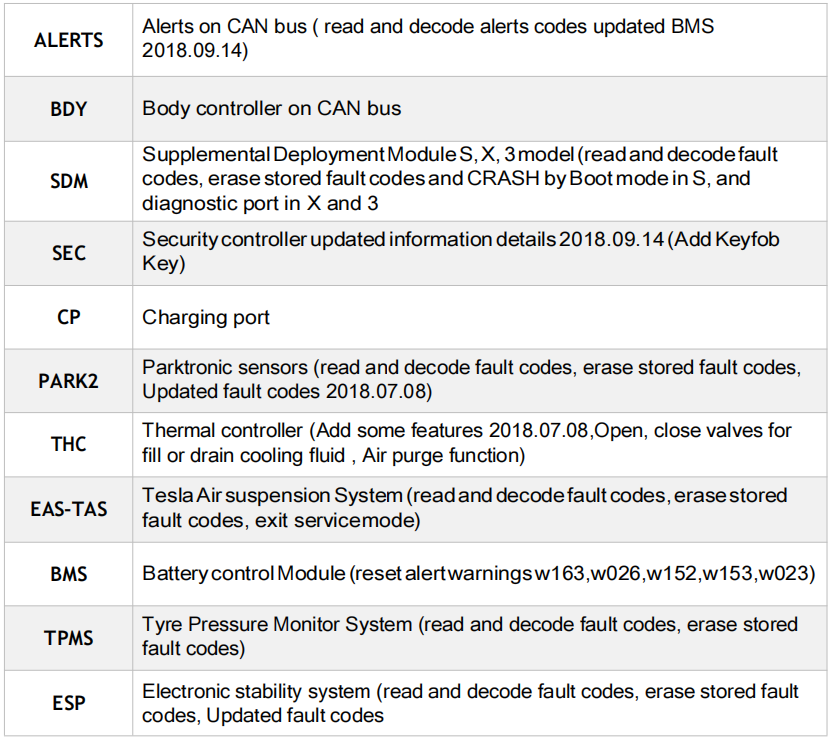
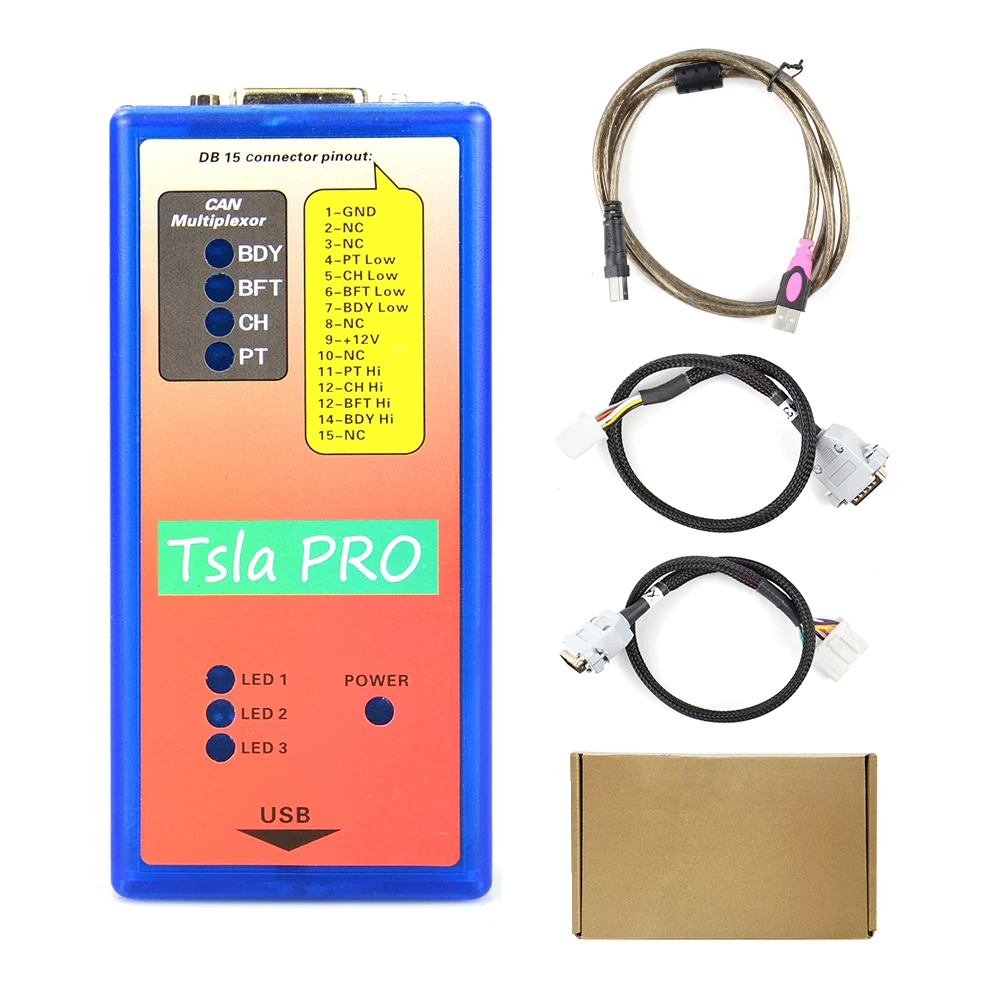
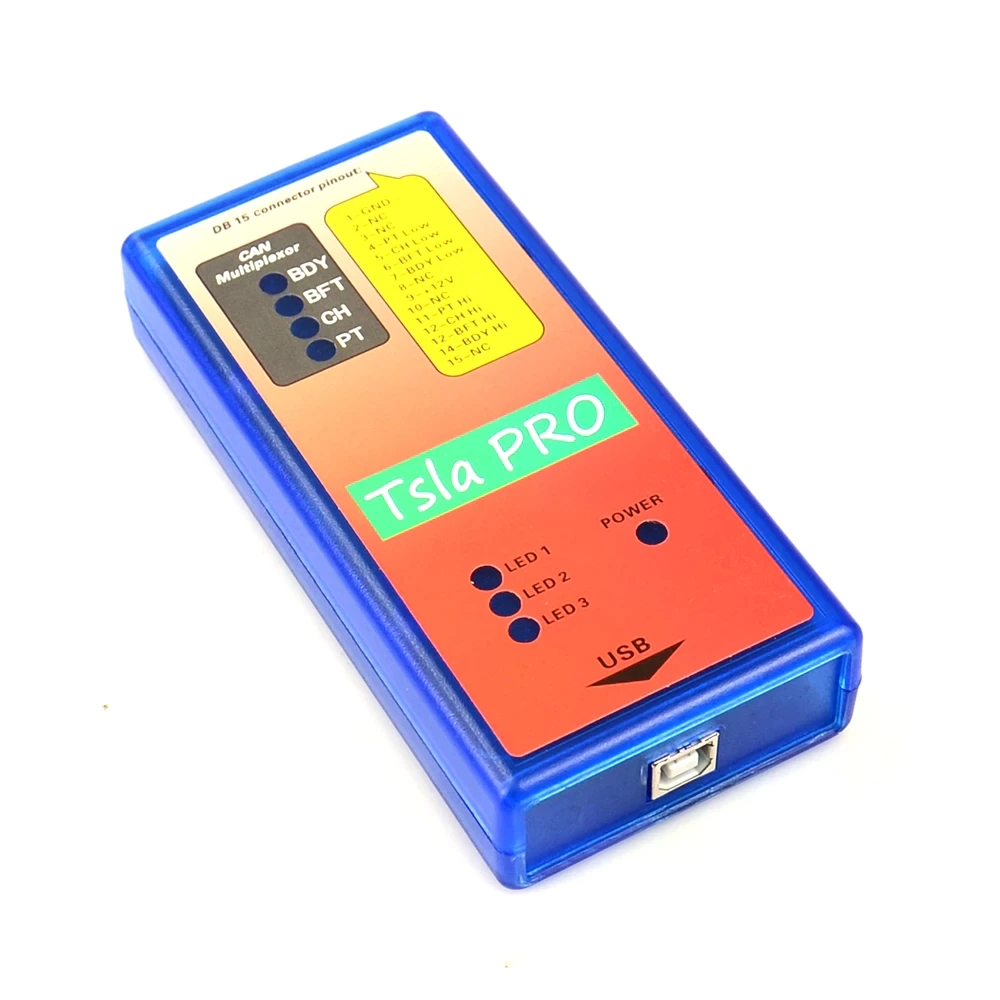
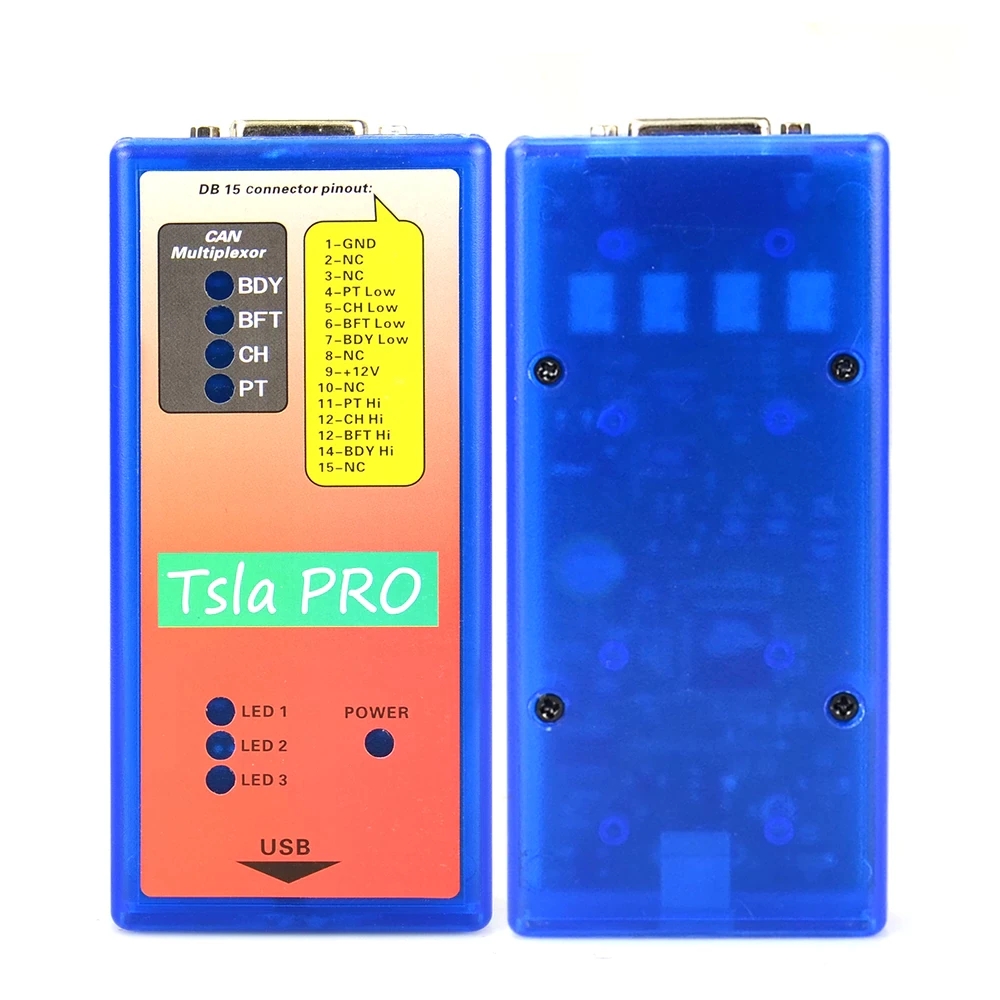
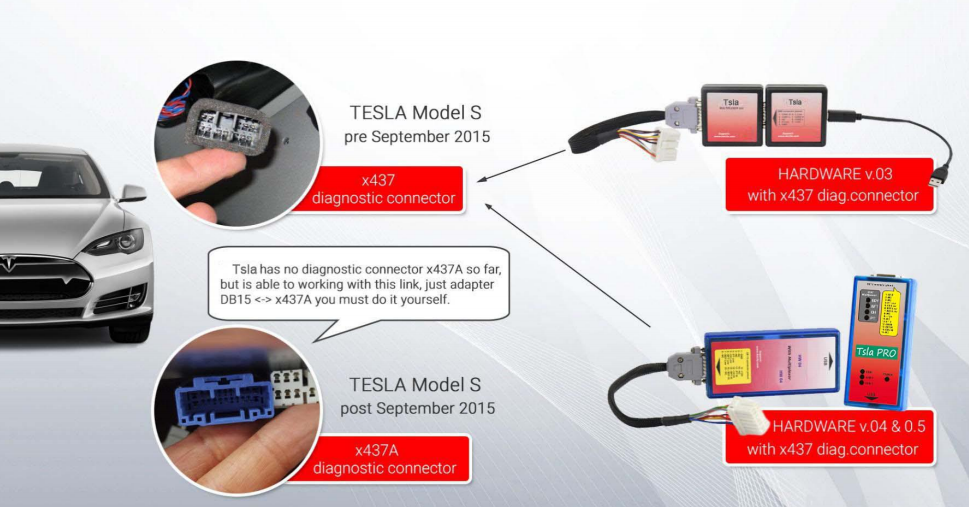
Tsla PRO Diagnostic interfaces Tsla PRO has no diagnostic connector x437A so far, but is able to working with this link, just adapter DB15x437A you must do it
For information about Tsla PRO, please check this link:https://www.cnautotool.com/goods-7101-Tsla-PRO-Scanner-Diagnostic-Programming-Tool-TESLA-S-X-3.html
website: sale@cnautotool.com
Posted by: youobd2 at
12:51 PM
| No Comments
| Add Comment
Post contains 254 words, total size 4 kb.
December 18, 2021
Caterpillar electronic technician 2021B with WinFlash future is an updated version of the caterpillar dealer diagnostic software that can help technicians to diagnose existing and potential problems with their electronically controlled Caterpillar Engines and Machines.
Installation and activation are possible only with remote assistance using Teamviewer. We provide ONLY offline activation methods. We can also Offer Lenovo x220 loptop or Dell630 loptop which we will install the software on before shipping, so you can get it work directly after you receive it.
Microsoft ended extended support for Windows 7 as of January 2020. The Cat ET service tool no longer supports Windows 7 as of the 2020B release. The installation is still possible, but we’re not able to guarantee the stable work of 2020B or later versions.
In case if you still running windows 7, we can offer you the 2020A version as last compatible with windows 7, for this purpose, please indicate the 2020A release in the comments field.
The list of supported CAT machines and engines can be found below(if your vehicle is missing, please contact us we will double check):
Engines:
Electric Power
Electric Power Generation
Industrial
Marine Power Systems
Oil and Gas
Machines:
Articulated Trucks
Asphalt Pavers
Backhoe Loaders
Cold Planers
Compactors
Dozers
Drills
Excavators
Feller Bunchers
Forest Machines
Forwarders
Harvesters
Hydraulic Mining Shovels
Knuckleboom Loaders
Material Handlers
Motor Graders
Off-Highway Trucks
Pipelayers
Road Reclaimers
Site Prep Tractors
Skid Steer and Compact Track Loaders
Skidders
Telehandlers
Track Loaders
Underground – Hard Rock
Underground – Longwall
Underground – Room and Pillar
Utility Vehicles
Wheel Dozers
Wheel Excavators
Wheel Loaders
Wheel Tractor-Scrapers
The Built-in Factory Password Generator
The experimental feature allows you to decode (18-Bit passwords not supported) factory passwords
Cat works with the Caterpillar Communication Adapters family.
The recommended adapter is a Caterpillar Communication Adapter III Kit PN 538-5051 (Replaces 466-625
.
This diagnostic app allows you to: Change vehicle’s parameters Lock / Unlock parameters Diagnose and reconfigure Reading of error codes ECM Flash
Recently, we have received a lot of questions about the most convenient way to obtain this product.
As soon as payment is done you will be redirected to the download page.
The Electronic Technician application can be easily downloaded.
The small file size(~ 500Mb) allows you to get and set up the app within up to 20 minutes even with a slow internet connection or mobile internet.
The activation takes about 5 minutes and you’re ready to go.
Error When Launching Service Tool
There is a Microsoft issue with upgrading libraries during an installation involving certain versions of the C++ redistributable. After a successful service tool installation, when trying to run the service tool for the first time, one of the following errors may occasionally appear: "The entry point could not be located in api-ms-win-crt-runtime†or "The program can’t start because mfc140u.dll is missing from your computer.†If either of these messages is displayed, follow the procedure below. This procedure requires administrator rights.
1. Open the Start Menu
2. Click the Control Panel
3. Click the "Programs and Features†icon. If there is only a "Programs†icon, click the "Uninstall a Program†link next to the icon.
4. Find the program entry for either "Microsoft Visual C++ 2015 Redistributable (x86) – 14.0.24215″ or "Microsoft Visual C++ 2015 Redistributable (x86) – 14.0.242151″
5. If the specified program entry is not found, proceed directly to step 8
6. If the specified program entry is found:
a) Right-click the specified program entry
b) Click the Change menu item
c) Click the Repair button in the dialog that appears
d) Verify that the service tool runs properly
7. If the service tool still displays an error after the Repair operation:
a) Right-click the specified program entry
b) Click the Uninstall menu item
8. Click the link below to download an x86 version of the runtime package from Microsoft.
https://download.microsoft.com/download/6/A/A/6AA4EDFF-645B-48C5-81CC-ED5963AEAD48/vc_redist.x86.exe
9. Install the downloaded package
10. Verify that the service tool runs properly
11. If the service tool still displays an error, please send an email to the support department.
What’s New – 2021B
End of Support for Windows 8
Microsoft is ending extended support for Windows 8 as of January 2023. The service tool will be ending support for Windows 8 after the 2021C release.
Calibration Images
Images attached to calibration instructions will no longer need to be opened manually to be viewed by a technician. The service tool will now have split user interface windows for calibrations that display pictures. This will allow the technician to see the images without having to navigate away from the instructions. Images may be opened into individual windows and resized for better clarity. The user interface for calibrations that do not display pictures will remain unchanged.
Default PC Browser
The service tool will no longer automatically launch web pages in Microsoft Internet Explorer. Web pages will now launch in whatever application is configured as the default internet browser. Certain web pages require a specific browser and may launch in a different browser.
What’s New – 2021A
No significant new features or feature enhancements
What’s New – 2020C
No significant new features or feature enhancements
What’s New – 2020B
Trainer Update – 299D3
The 299D3 Skid Steer Loader has been added to the Trainer application.
What’s New – 2020A
Product Status Report Updates
The Product Status Report has been updated to include throttle configuration information.
Built-in Factory Password Generator
The experimental feature allows you to decode (18-Bit passwords not supported) factory passwords
What’s New – 2019C
Indication of Selected Communications Adapter
The service tool now displays the selected communications adapter when the service tool is disconnected. The adapter name is displayed in the status area at the bottom right of the service tool window.
End of Support for Windows 7
Microsoft is ending extended support for Windows 7 as of January 2020. The service tool will be ending support for Windows 7 as of the 2020A release.
What’s New – 2019B
Automatic Product Status Report (PSR) Upload
The service tool includes a new tool that automatically uploads Product Status Reports. The tool scans for newly generated Product Status Reports and uploads them when an internet connection is available. The default is that automatic report uploading is enabled. The Preferences dialog has an option to disable the tool.
What’s New – 2019A
ECM Naming Changes
Certain ECMs connect to the service tool over two data links at the same time. The service tool shows a message popup when the ECM is only detected on one link. The service tool has been changed to add the text **INCOMPLETE** in the ECM name when the connection is incomplete. Service tool features that display a connection icon also use a new icon for an incomplete connection.
What’s New – 2018C
No significant new features or feature enhancements
What’s New – 2018B
CEOS Fleet Configuration File TOP
A CEOS (Customer Electronic Option Selection) Fleet Configuration File can be created/modified for an engine using the Service Tool. This is available in connected and disconnected mode.
Error When Launching Service Tool
There is a Microsoft issue with upgrading libraries during an installation involving certain versions of the C++ redistributable. After a successful service tool installation, when trying to run the service tool for the first time, one of the following errors may occasionally appear: "The entry point could not be located in api-ms-win-crt-runtime†or "The program can’t start because mfc140u.dll is missing from your computer.†If either of these messages is displayed, please let us know and we will send you to step by step troubleshooting guide. This procedure requires administrator rights.
Service Tool License Corruption Issues with Windows 10 Updates
Windows 10 updates 1709 and 1803 will corrupt service tool licenses. Future Window 10 updates may do the same
If either of the license error messages is displayed, please let us know and we will send you to step by step troubleshooting guide.
What’s New – 2018A
Trainer Update – 988K XE Wheel Loader
The 988K XE Wheel Loader has been added to the Trainer application.
What’s New – 2017C
Preferences Option to Save a Product Status Report to PDF
The Preferences dialog for the Product Status Report has changed. The dialog contains a new checkbox to automatically save a Product Status Report as a PDF file when the report is created. The service tool will continue to automatically save Product Status Reports as an XML file.
What’s New – 2017B
Product Status Report Updates
The Product Status Report has been updated to include certain history features supported by the ECM, such as the after-treatment Regeneration History and the Service Test History.
Winflash Screen Update
The screen for the Winflash feature has been updated. A new Expand All button opens all sections of the screen to show all details for ECMs detected by WinFlash. A new Collapse All button hides all sections of the screen, except for header rows showing detected ECM names.
PC, Communication Hardware, and Cable Requirements
To run the service tool, the next PC, communication hardware, and cable requirements must be met. NOTE: The minimum PC Configurations should not be used as a standard when buying new personal computers for service tool purposes. If the existing equipment meets these minimum requirements, it will run the service tool.
PC Requirements
Recommended Configurations
PC containing a 2.0 GHz dual-core processor
3GB RAM
3GB of the available hard disk drive
DVD-ROM drive (optionally)
15.4-inch XGA Screen (1280×1024 compatible)
Microsoft Windowsâ„¢ 7 Professional or Windows 8 Professional, Windows 10 Professional (Not tested with Home Edition) (Note: Windows 8 RT is not supported)
RS232 port with 16550AF UART or compatible (for use with Comm Adapter II)
USB 1.1 or 2.0 port (for use with Comm Adapter 3)
Ethernet RJ45 connector
Built-in pointing device or mouse
For security purposes, Microsoft Internet Explorer version 11 or newer or Microsoft Edge is recommended.
Note: The most recent version of Microsoft Internet Explorer may not be validated to work with the service tool.
Wi-Fi (for the Wireless Comm Adapter 3)
Minimum Configurations
PC containing a Pentium 2 GHz processor or greater
1GB RAM
500MB of an available hard disk drive
CD-ROM drive
Super VGA monitor or display (1024×76
Microsoft Windowsâ„¢ 7 Professional or Windows 8 Professional, Windows 10 Professional (Not tested with Home Edition) (Note: Windows 8 RT is not supported)
RS232 port with 16550AF UART or compatible (for use with Comm Adapter II)
USB 1.1 or 2.0 port (for use with Comm Adapter 3)
Ethernet RJ45 connector
Built-in pointing device or mouse
For security purposes, Microsoft Internet Explorer version 9 or newer is recommended. Note: The most recent version of Microsoft Internet Explorer may not be validated to work with the service tool.
Configuring Cat Electronic Technician to use the Communication Adapter 3
For Cat Electronic Technician to work with the Communication Adapter 3, the settings must be changed to select the Communication Adapter 3 as the Communication Interface Device:
Step 1 Start Cat Electronic Technician.
Step 2 Click the Stop Connect button when it appears.
Step 3 Select the utility menu.
Step 4 Choose "Preferences > Modify…â€.
Step 5 Select the Communications tab.
Step 6 Select Cat Comm Adapter 3 (RP1210) and click OK.
NOTE: Because a growing number of products require multiple data link services, the "Enable Dual Datalink Service†checkbox has been pre-selected.
Servicing ECMs on more than one data link requires this checkbox to be enabled.
Failure to do this will result in undetected ECMs and reduced functionality.
Posted by: youobd2 at
05:51 AM
| No Comments
| Add Comment
Post contains 1922 words, total size 14 kb.
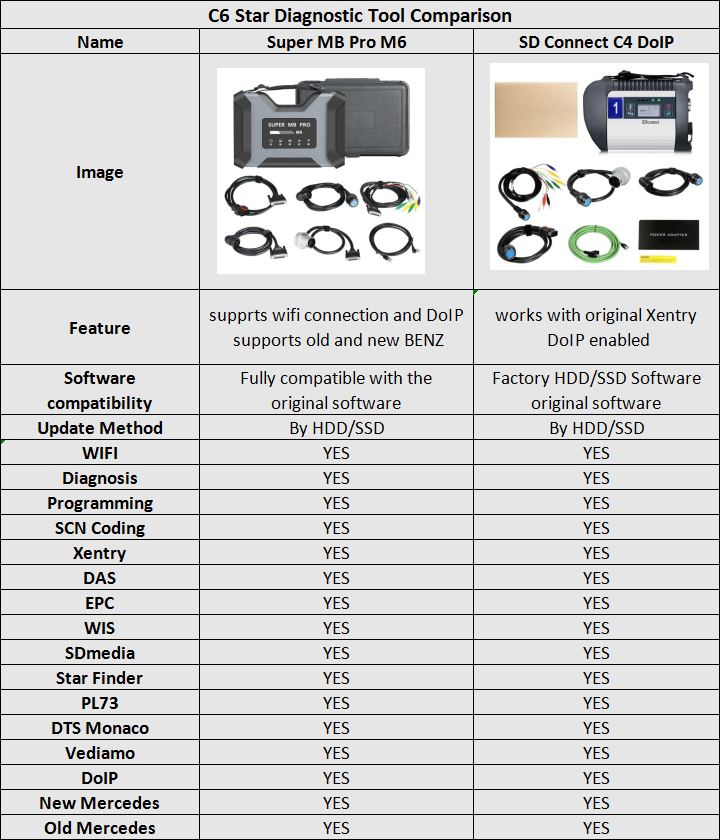
Super MB Pro M6 is a new mb star diagnostic tool that adopts the framework concept of the original C6 diagnostic tool, can completely replace the original SD-Connect-C4, is fully compatible with the original software and the diagnosis and programming for Mercedes Benz vehicles supported until 2021
MB SD Connect C4 Plus Star Diagnosis Support DOIP for Cars and Trucks with Free DTS Monaco & Vediamo, reading out & erasing trouble code, reading the real-time data of sensor and actuator, coding and programming.
Super MB Pro M6 vs.SD Connect C4 DoiP
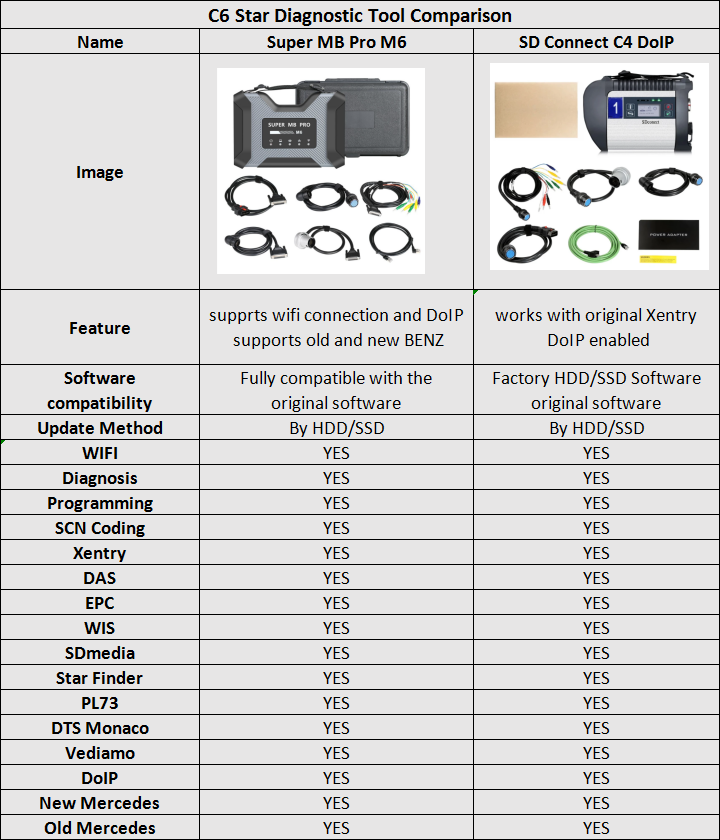
Why Choose Super MB Pro M6 ?
1. SUPER MB PRO M6, with the strong penetration of wireless test and WIFI signal, relieves the dependency on communication transmission cable during test, and greatly reduces restriction on testing distance.
2. ABS+PVT plastic structure adoption has the advantages as follows:
1) Impact-proof & easy to carry
2) Lower consumption on product shell against wireless signal
3) Great advancement of wireless communication distance & stability
3. SUPER MB PRO M6 adopts double-radiation mode (radiation fan & radiation fin). Radiation fan will automatically turn on high-power radiation mode when SUPER MB PRO M6 internal temperature over 35℃, greatly improving the stability and safety when programming.
4. Built -in network interface prevents deformation and damage from impact.
5. SUPER MB PRO M6 is the only diagnostic tool on the market that is highly consistent with the original MB Star C6:
1) Fully compatible with the original software.
2) You can directly upgrade the newest firmware without installing additional driver.
6. Can perform as the same functions as that of the original:
Compatible with the Mercedes Benz models with protocol DOIP, K-line, CAN Low, Can High, LIN, RS485, etc, works with the old cars and new cars.
7. Support diverse Mercedes-Benz models, covering 12v car, 24v diesel truck & bus, MPV etc.
8. Support firmware update without installing the battery, but directly plug the device to the OBD port of the car to supply power, you do not need to worry about that the firmware will be damaged in the process of update.
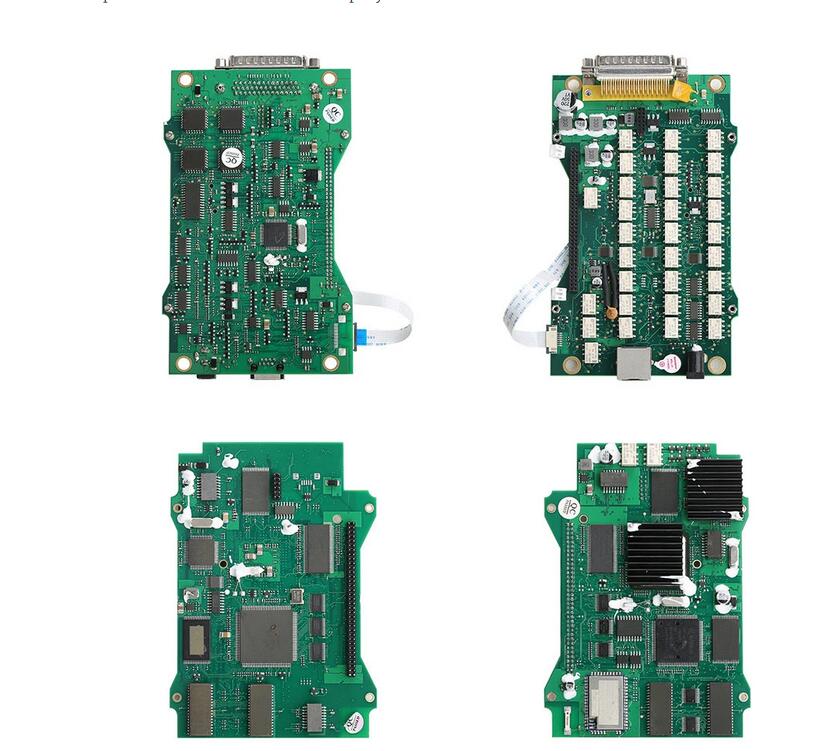
Super MB Pro M6 PCB Board Display
Posted by: youobd2 at
05:44 AM
| No Comments
| Add Comment
Post contains 364 words, total size 4 kb.
20 queries taking 0.0171 seconds, 35 records returned.
Powered by Minx 1.1.6c-pink.

