



February 25, 2019
What is the AVDI recognized by Xentry?
Xentry Mercedes Passthru is different from from regular Xentry openshell. Xentry passthru does not use SDconnect toolkit. When you launch the program it will give you a dropdown where you can choose which J2534 device you want to use.
How to use Xentry Passthru?
If you got the Xentry Passthru installed, there is a tool which will do the dirty work for you.
Normally it is not linked or doesnt have desktop shortcut but resides (at least in my installation)
under
C:\Program Files (x86)\Mercedes-Benz\xentry\bin\SelectPTDevice
IF you have installed your passthru (would that be AVDI or anything else) with correct drivers, registry entries etc it will just present you with list of options and you select your VCI from dropdown list.
Heard good things about AVDI J2534 compatibility (real thing, don’t know about clones) so it shouldn’t be a big deal. Recently i have tried to use BOSCH KTS560 as passthru and it works perfectly okay.
For curiosity, i did also test the 20-euro MiniVCI that gets normally bundled with Toyota techstream packages. to my surprise it also works albeit slow and sometimes freezes the application. This one can be actually made to work even with old DAS like 2009, 2012….it’s just matter of proper settings in cal.ini and slave.ini
For DAS/Xentry users:
Old thread – but do not run the SetPassThruDAS.exe, as it was written for DAS/Xentry for Windows XP, and not Openshell or Xentry Passthru. All you need to do is install a fresh OS (Windows 7 Enterprise x86 or x64 SP1) ideally on a physical laptop, connect the AVDI device to the USB port and run the SetupInterface_yourserialnumber_PASSTHRU_xxxxxxx.exe and Next through the setup process. If you have a current version of the Passthru software, you will see a grayed out option for installing drivers for DAS that you cannot select, but do not be concerned about that. It will detect the AVDI, and install the appropriate J2534 dll files in the Windows\System32 directory. Then continue installing your Passthru software provided on the Blu-ray from Daimler. It will take a while to install, and once it verifies your hardware ID and installs your StartKey, launch Xentry Passthru from the icon it creates, and it will prompt you first thing as to what interface you want to use. You will see Abritus72AVDI ABRITES CommanderPT (your serial number here) in the drop down box. Select that device, and that is all their is to it. Xentry should automatically communicate with the vehicle.
Posted by: youobd2 at
02:32 PM
| No Comments
| Add Comment
Post contains 426 words, total size 3 kb.
February 18, 2019
HOW WILL THE GM MDI BE USED?
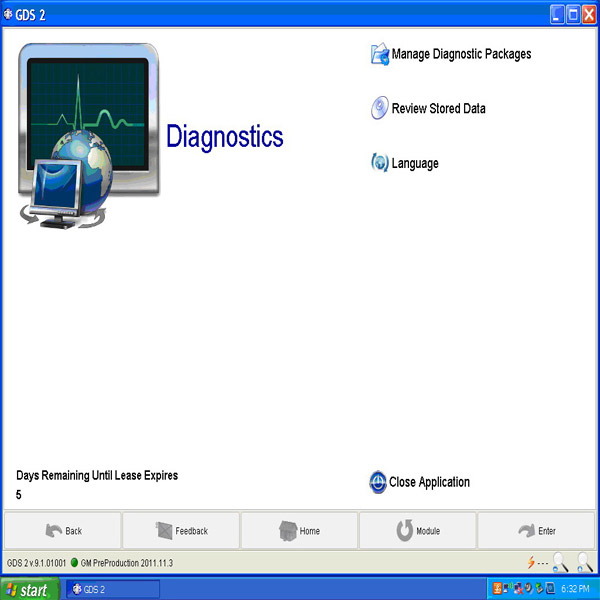
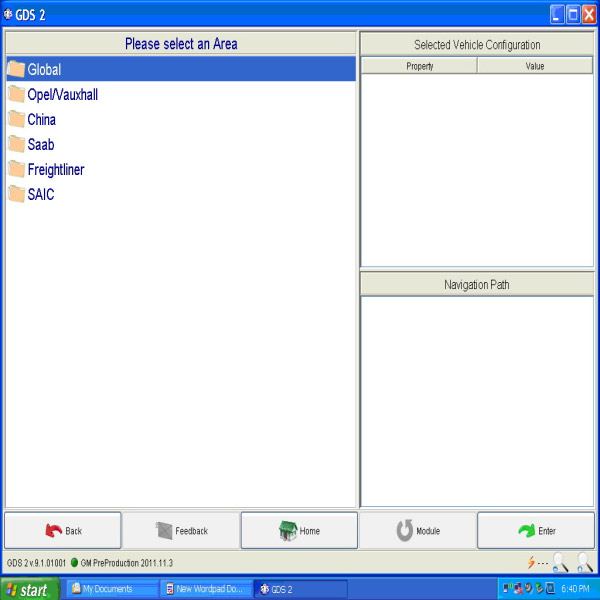
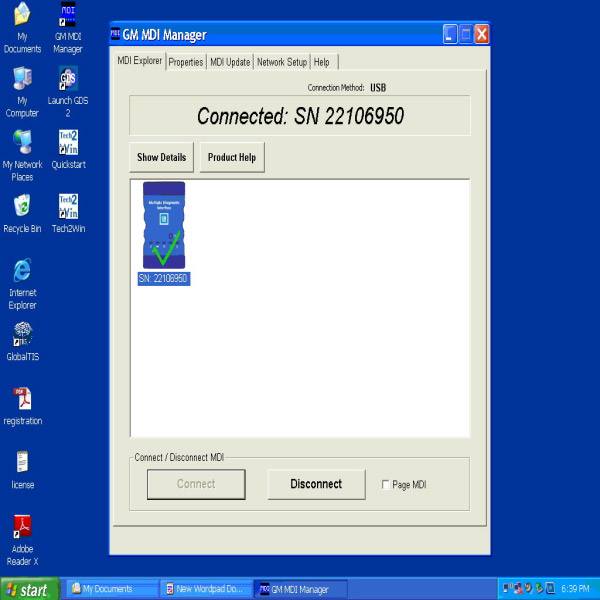
The new GM MDI can be used only in the Pass-Thru method. This means you can use it as your programming tool, while your Tech 2/CANdi remains available for diagnostics and other duties.
The GM MDI is initially being introduced with Pass-Thru programming capabilities only. It can be used to perform Pass-Thru programming on all vehicles built since 1996 and will support all vehicles into the future.
The GM MDI will be required to perform diagnostics on selected NAO vehicles for model year 2009. Diagnostic software is scheduled to be released for the GM MDI during the fourth quarter of 2008.
Regulations require programming procedures to be compliant with SAE Recommended Practice J2534. The GM SPS is compliant with SAE Recommended Practice J2534, and the GM MDI is compliant with the portions of SAE J2534 that are applicable for GM vehicles.
What protocols does the GM MDI support?
For immediate use — At present, vehicles have two buses on the 16 pin connector
(high speed and low speed GMLAN). The GM MDI communicates using all of the existing GM protocols, the same as the Tech 2:
– UART
– Class 2
– KWP2000
– GMLAN (CAN)
Beginning with the 2008 model year vehicles, Pass-Thru will be the only programming method available. (Remote will continue to be available for previous vehicles.)
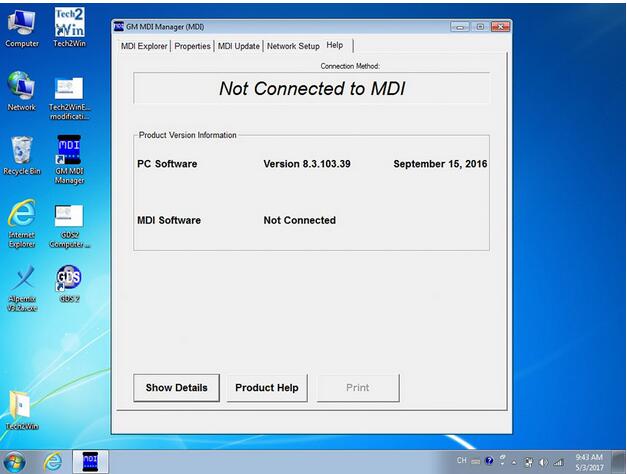
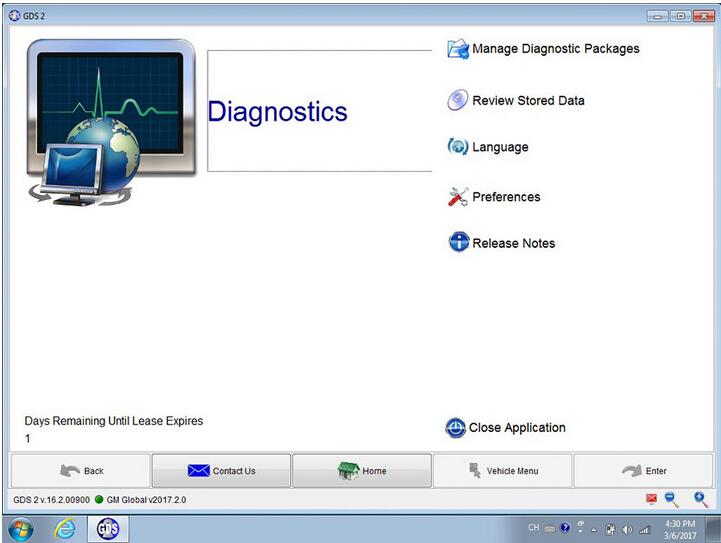
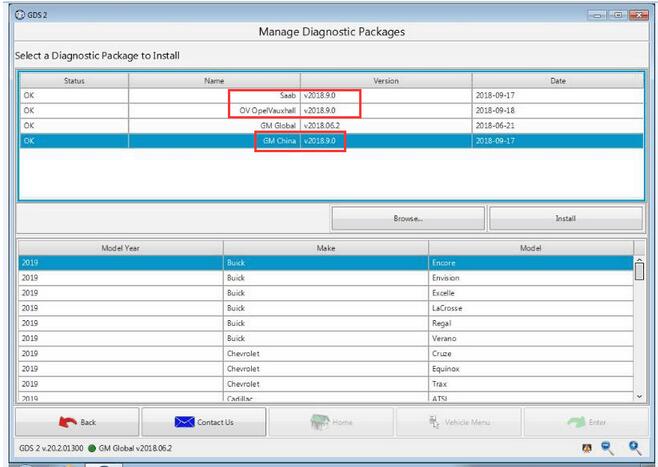
How to solve when it doesn’t connect the MDI?
Posted by: youobd2 at
08:18 AM
| No Comments
| Add Comment
Post contains 243 words, total size 3 kb.
Posted by: youobd2 at
08:10 AM
| No Comments
| Add Comment
Post contains 6 words, total size 1 kb.
February 09, 2019
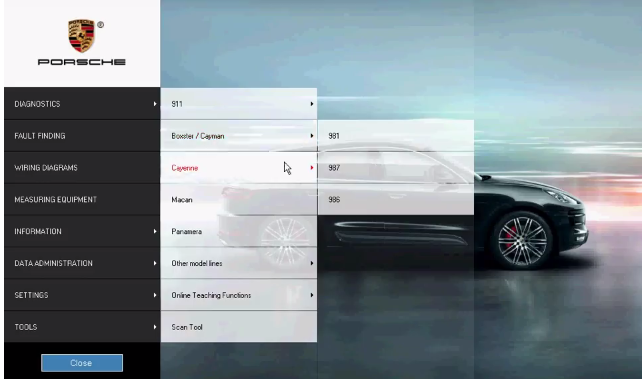
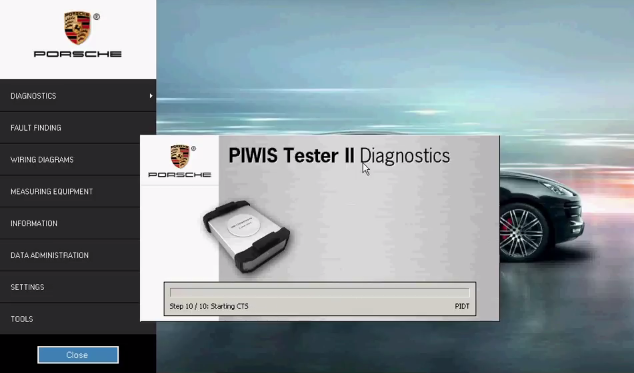
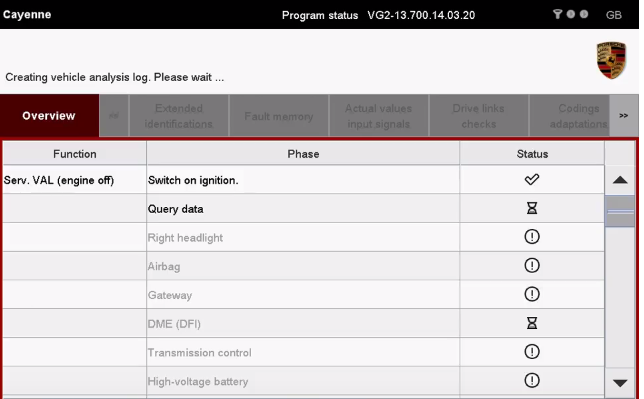
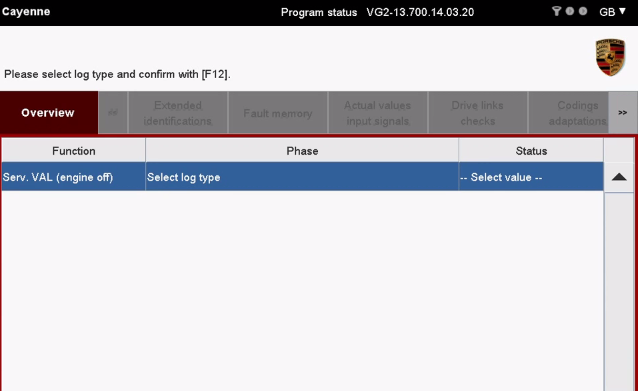
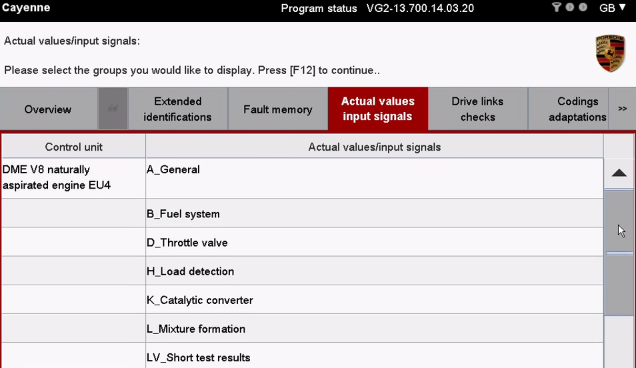
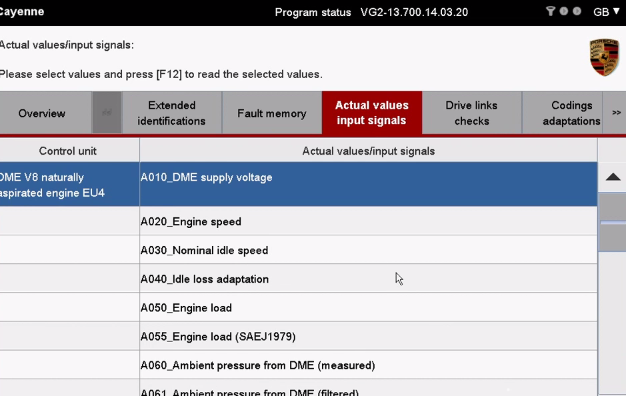
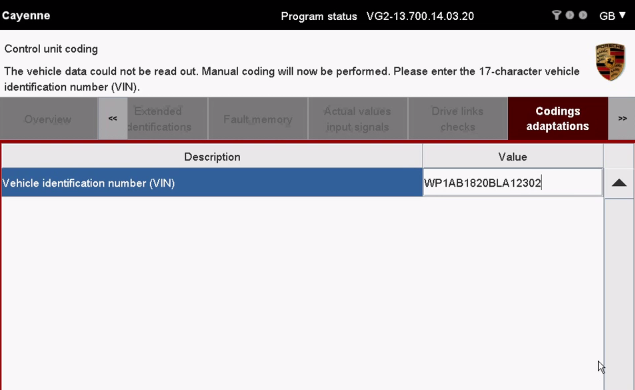
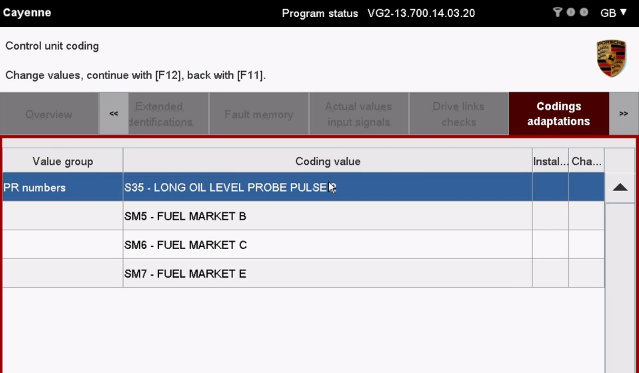
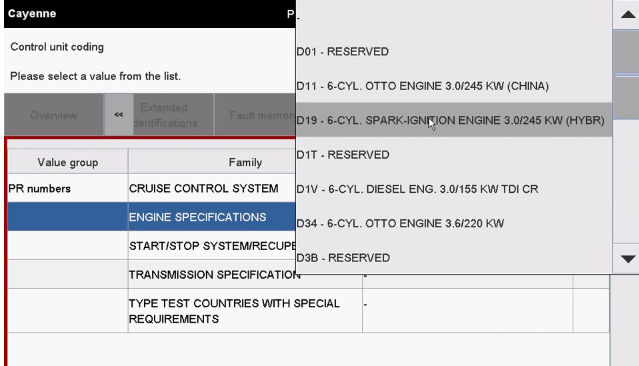
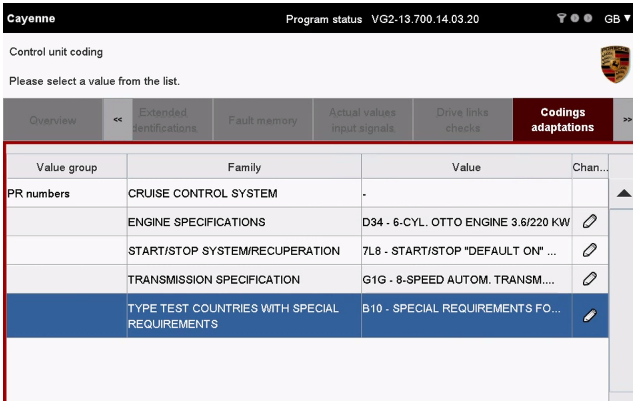
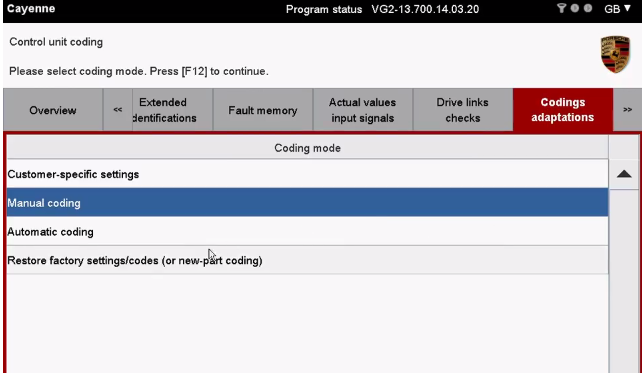
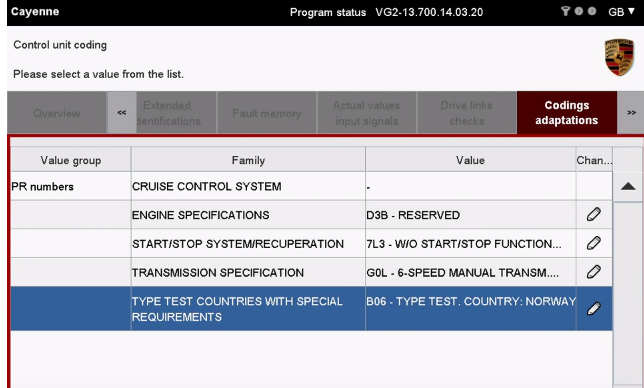
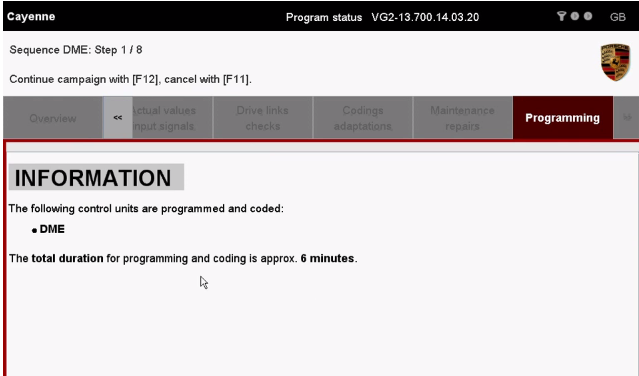
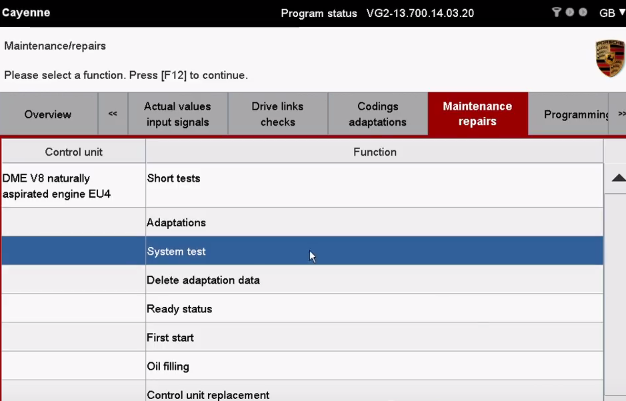
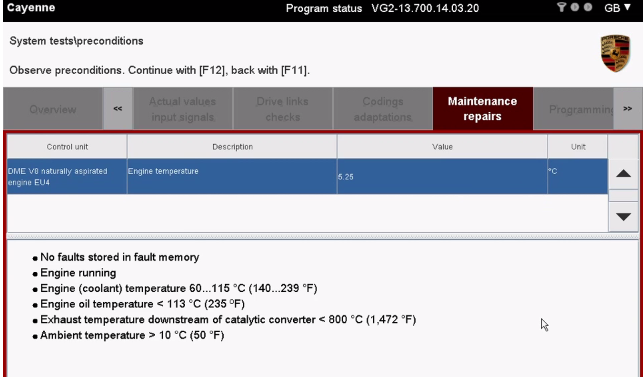
In this article we show you how to use Porsche Piwis Tester II work with Cayenne engine module, and read the live data, delete fault codes etc, for more details please visit:www.obd2tool.com



Posted by: youobd2 at
07:54 AM
| No Comments
| Add Comment
Post contains 41 words, total size 8 kb.
February 04, 2019
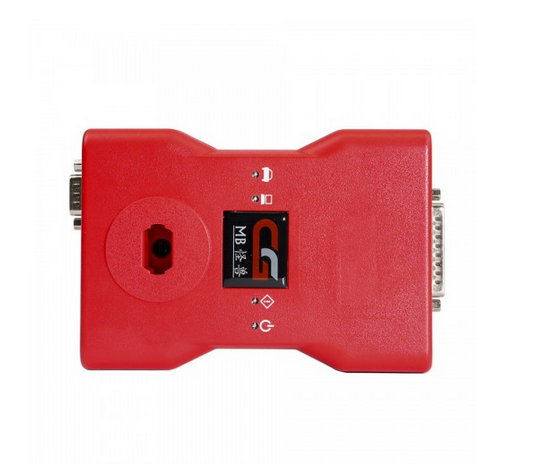
CGDI MB latest version V2.8.1.0 is confirmed to program new keys via K-line to 202/208/210, 203/463/639 when all keys are lost.
Free download Cgdi mb 2.8.1.0 software:
http://www.cg100iii.com/benz/Benz_Setup.exe
Confirmed to work with cgdi mb hardware:
CGDI mb V2.8.1.0 released notes on 19th Dec,2018
1. Added K-line all lost collection support EIS Model
202/208/210, 203/463/639
2. Optimize the Keyless repeatedly plug collecting process
Fix problems that can cause program errors in specific situations in the collection.
3. Optimize network connectivity and improve server connectivity stability.
4. Software display language increases regional restrictions.
Posted by: youobd2 at
02:25 PM
| No Comments
| Add Comment
Post contains 101 words, total size 1 kb.
20 queries taking 0.01 seconds, 37 records returned.
Powered by Minx 1.1.6c-pink.

